


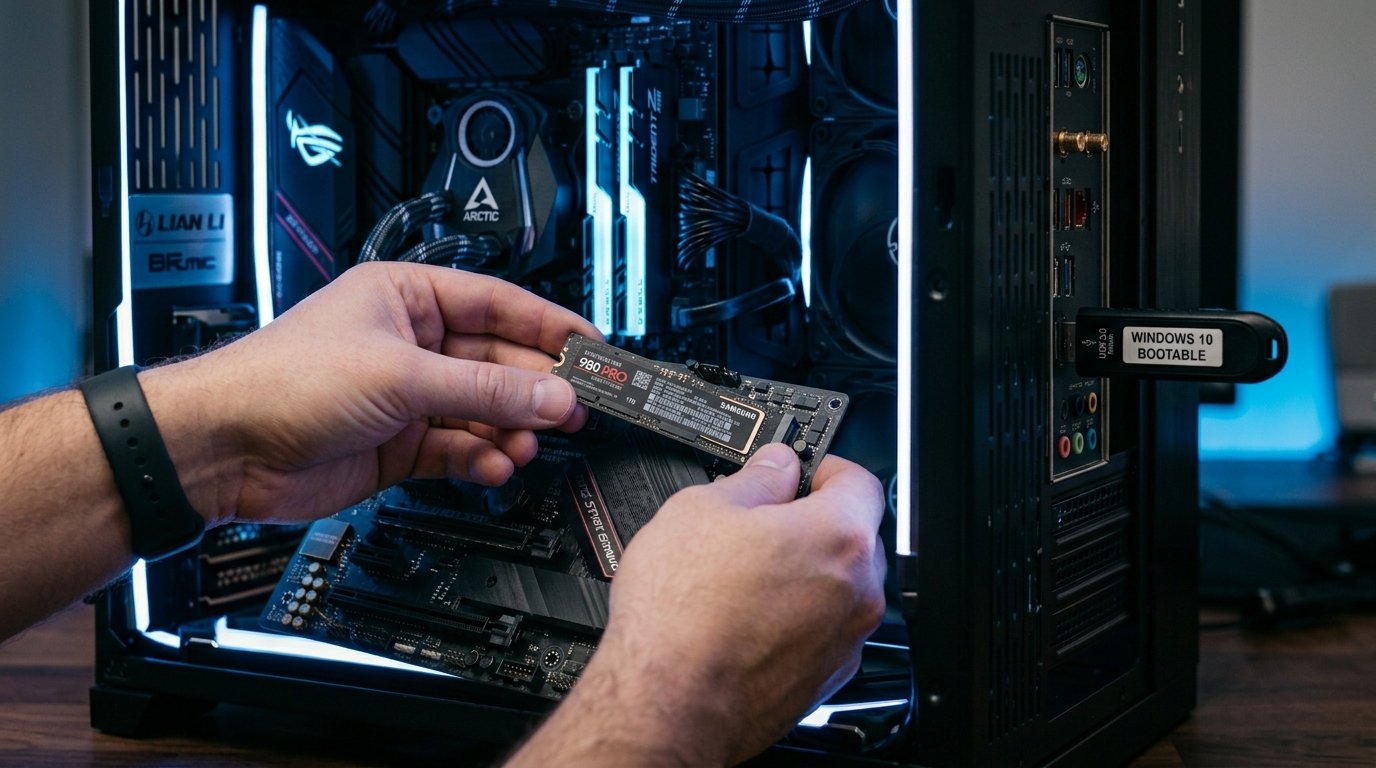
How to install Windows 10 on a new hard drive is a skill every PC owner should know, especially when upgrading storage or building a fresh system. Whether you bought a new SSD for speed or replaced a failing HDD, a clean installation gives you the best possible performance.
In this detailed guide, you will learn every step from start to finish. We cover preparation, creating installation media, BIOS changes, the actual installation, activation, optimization, and common problems with fixes. By the end, you will have a clean, fast Windows 10 system ready for daily use.
Why Choose a Clean Installation on a New Drive?
New hard drives and SSDs come without any operating system. Installing Windows 10 directly on them creates the right partitions and system files. This approach removes old software problems, bloat, and potential viruses that cloning might carry over.
Key benefits include:
- Significantly faster boot times and app loading (especially on NVMe SSDs)
- A fresh registry and clean file system
- Better control over drivers and updates
- Improved overall stability and security
Even in 2026, many people continue using Windows 10 because of software compatibility. Microsoft ended mainstream support on October 14, 2025, but offers Extended Security Updates (ESU) for critical patches until October 2026 for consumers who enroll.
What You Will Need
Before you begin, gather these items:
- New hard drive or SSD (installed in your PC)
- USB flash drive (minimum 8 GB)
- Another working computer to create the bootable media
- Windows 10 product key (or use digital license later)
- Screwdriver for hardware installation
- Stable internet connection for updates after installation
Always back up important data first. For safety, disconnect any other internal drives during the initial install to avoid accidental formatting.
Understanding Different Drive Types
Modern storage includes traditional HDDs, SATA SSDs, and fast NVMe M.2 SSDs. The installation process is similar, but NVMe drives often need the latest motherboard BIOS for full compatibility.
Check your motherboard manual or manufacturer’s website for supported storage types and recommended firmware updates.
Step 1: Creating Bootable Windows 10 Installation Media
The most reliable way is using Microsoft’s official Media Creation Tool.
- On a working PC, go to the Microsoft Windows download page.
- Download and run the Media Creation Tool.
- Choose “Create installation media for another PC.”
- Select your language, Windows 10 edition (Home or Pro), and 64-bit architecture.
- Choose USB flash drive and follow the on-screen instructions.
This process can take 30 to 60 minutes.
Advanced Option – Using Rufus: Download the Windows 10 ISO file directly from Microsoft. Then use the free Rufus tool to burn it to USB. Select GPT partition scheme and UEFI target system for modern PCs. Rufus also allows custom settings like removing TPM requirements if needed.
[Image Placeholder: Media Creation Tool interface screenshot]
Step 2: Physical Installation of the New Drive
Power off your computer completely and unplug the power cable. Open the case (for desktops) or access the drive bay (for laptops).
- Mount the new drive securely using screws.
- Connect the SATA data cable and power cable (for 2.5″/3.5″ drives).
- For M.2 NVMe SSDs, insert carefully into the slot and secure with the small screw.
After connecting, you can briefly power on the PC to check if the drive appears in BIOS before proceeding.
Step 3: BIOS and UEFI Configuration
Restart your PC and enter the BIOS/UEFI setup. Common keys are Delete, F2, F10, or F12.
Important settings to change:
- Boot Mode → UEFI (recommended for new drives)
- Secure Boot → Disabled (temporarily)
- Boot Priority → Put USB drive first
- SATA Mode → AHCI (avoid RAID unless required)
- Disable Fast Boot
Save changes and exit. The computer should now boot from the USB stick.
[Image Placeholder: BIOS boot order menu with annotations]
Step 4: Running the Windows 10 Setup
When the Windows setup screen appears:
- Select your language, time, and keyboard preferences.
- Click “Install now.”
- Enter your product key or skip for later activation.
- Accept the license agreement.
- Choose “Custom: Install Windows only (advanced).”
- Select your new drive (it will show as unallocated space). Windows will create necessary partitions automatically.
- Click Next and let the installation begin.
Your PC will restart several times during this process. The entire installation usually takes 15 to 45 minutes depending on hardware speed.
Manual Partitioning with Diskpart (Advanced): Press Shift + F10 during setup to open Command Prompt. Use commands like diskpart, list disk, select disk X, clean, and convert gpt if you need full control.
For more detailed visuals and alternative methods, refer to this comprehensive tutorial: how to install Windows 10 on a new hard drive.
Step 5: Initial Setup and Driver Installation
After the final restart, complete the Out-of-Box Experience (OOBE):
- Choose region and keyboard layout
- Connect to Wi-Fi
- Create or sign in with a Microsoft account (or use a local account for privacy)
- Review privacy settings
Next, install drivers:
- Visit your motherboard or laptop manufacturer’s website
- Download the latest chipset, storage, network, and graphics drivers
- Install in the correct order (chipset first)
Use Device Manager to identify any missing drivers.
[Image Placeholder: Windows Device Manager showing drivers]
Step 6: Activation and Windows Updates
Go to Settings > Update & Security > Activation to enter your product key or troubleshoot activation.
Windows will automatically check for updates. Install all available patches, including any ESU security updates if you enrolled.
Performance Optimization Tips
To get maximum speed from your new drive:
- For SSDs: Ensure TRIM is enabled (usually automatic)
- Disable unnecessary startup programs in Task Manager
- Use the High Performance power plan
- Keep at least 20% free space on the drive
- Regularly update firmware for your specific SSD model using manufacturer tools (Samsung Magician, Crucial Storage Executive, etc.)
Benchmark your drive with CrystalDiskMark to confirm expected speeds.
Data Migration Strategies
After a stable installation:
- Reconnect your old drive as secondary storage
- Copy personal files, documents, and projects
- Reinstall applications from official sources instead of copying folders
- Export browser data and settings
For developers, re-clone Git repositories and restore development environment configurations.
Security Best Practices in 2026
With mainstream support ended, focus on:
- Enrolling in the Windows 10 ESU program for continued security patches
- Keeping Windows Defender updated
- Using strong, unique passwords with a manager
- Enabling BitLocker for drive encryption
- Avoiding risky downloads and using browser security extensions
Troubleshooting Common Issues
New drive not detected:
- Check physical connections and cables
- Update BIOS firmware
- Load storage drivers during installation
“Windows cannot be installed to this disk” error:
- Convert the disk to GPT using diskpart
- Disable Secure Boot in BIOS
Boot problems:
- Disconnect all other drives during first install
- Verify boot order in BIOS
No internet after install:
- Transfer drivers via another USB drive
Activation issues:
- Run the built-in activation troubleshooter
For additional troubleshooting steps and screenshots, check this excellent guide: Windows 10 installation on new hard drive.
Comparison: Clean Install vs Drive Cloning
| Feature | Clean Install | Cloning Method |
| Performance | Best (fresh system) | Good, but may transfer issues |
| Time Required | 1–2 hours | 30–90 minutes |
| Bloatware Removal | Complete | Partial |
| Risk Level | Low with careful steps | Higher if source drive is failing |
| Best For | New drives and upgrades | Quick migrations |
Clean installs are strongly recommended for new hardware.
Advanced Topics
Dual-Booting with Linux: Install Windows 10 first, then add Linux. Most Linux distributions will detect Windows and set up GRUB bootloader automatically.
Virtualization: Use Hyper-V or VirtualBox to run Windows 10 inside another OS for testing.
No-USB Installation Methods: Tools like Hasleo WinToHDD allow direct installation from ISO to drive on another system.
Hardware-Specific Advice
Desktop PCs: Easier access to drive bays and multiple SATA ports. Laptops: Check service manuals for drive replacement procedures. Some models have limited slots. New PC Builds: Update motherboard BIOS before OS installation for best compatibility with modern CPUs and chipsets.
Maintaining Your New Windows 10 System
- Run Disk Cleanup and Storage Sense regularly
- Create system restore points and full backups
- Monitor drive health with CrystalDiskInfo
- Keep third-party software updated
- Consider eventual migration planning to Windows 11 or Linux when ESU ends in October 2026
FAQ Section
- Do I need a product key to start the installation? No. You can install and activate later, though some features will be limited until activated.
- How long does the full process take? Expect 45 minutes to 2 hours, plus extra time for updates and drivers.
- Will this work on both HDD and SSD? Yes. The steps are the same, but SSDs provide much better performance.
- What if the new drive is not showing in the installer? Try loading drivers from a second USB or checking BIOS SATA settings.
- Is Windows 10 still safe to use in 2026? It can be with ESU enabled, but plan for future upgrades.
- Can I install without disconnecting other drives? It is possible but riskier. Disconnecting prevents accidental data loss.
- How do I make the new drive the primary boot drive? The installer sets it automatically when it is the only drive connected.
- What about Windows 11 instead? If your hardware meets requirements (TPM 2.0, Secure Boot), consider it for longer free support.
Conclusion
You now have a complete, practical understanding of how to install Windows 10 on a new hard drive. Follow the steps carefully, double-check BIOS settings, and take your time during drive selection.
A clean installation rewards you with better speed, reliability, and peace of mind. Remember to back up regularly and stay on top of available security updates through the ESU program.
Once your system is running smoothly, explore further customizations based on your specific needs — whether for gaming, development, office work, or creative tasks.
